One tick, a bigger order.
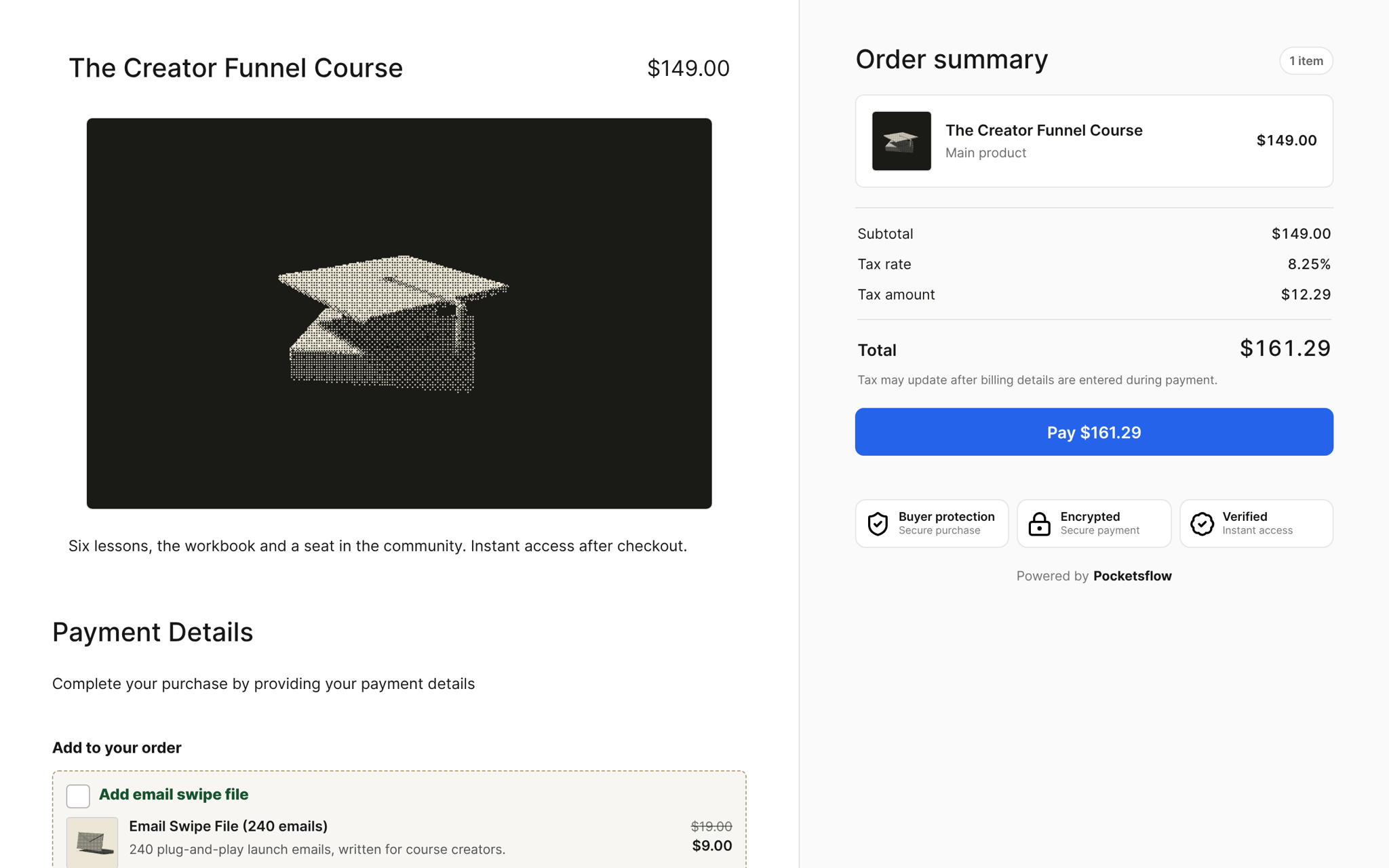
Offer a related product right on the checkout, at a price that only exists there. Buyers tick one box to add it to the same order, and you see exactly how much each offer adds.


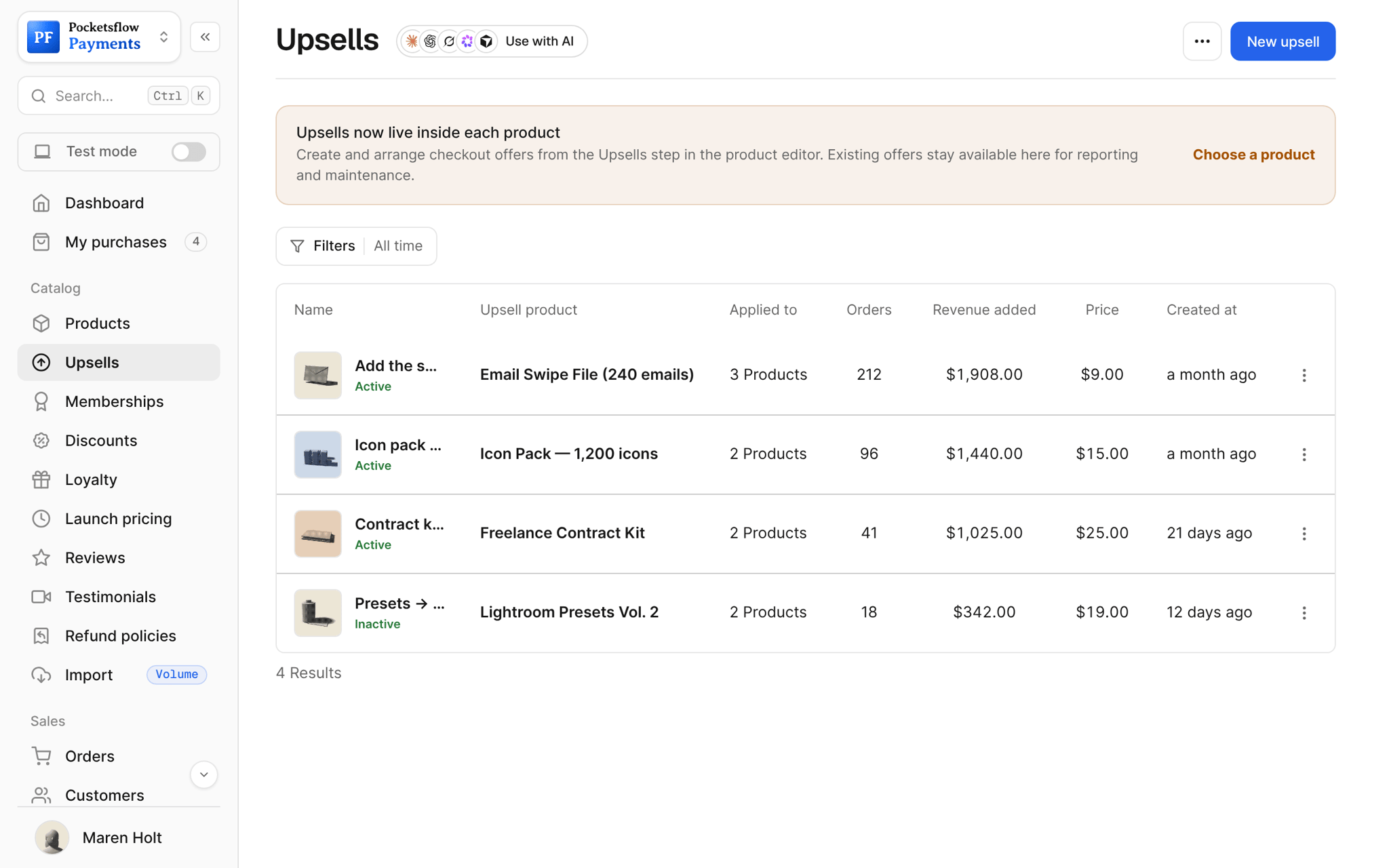
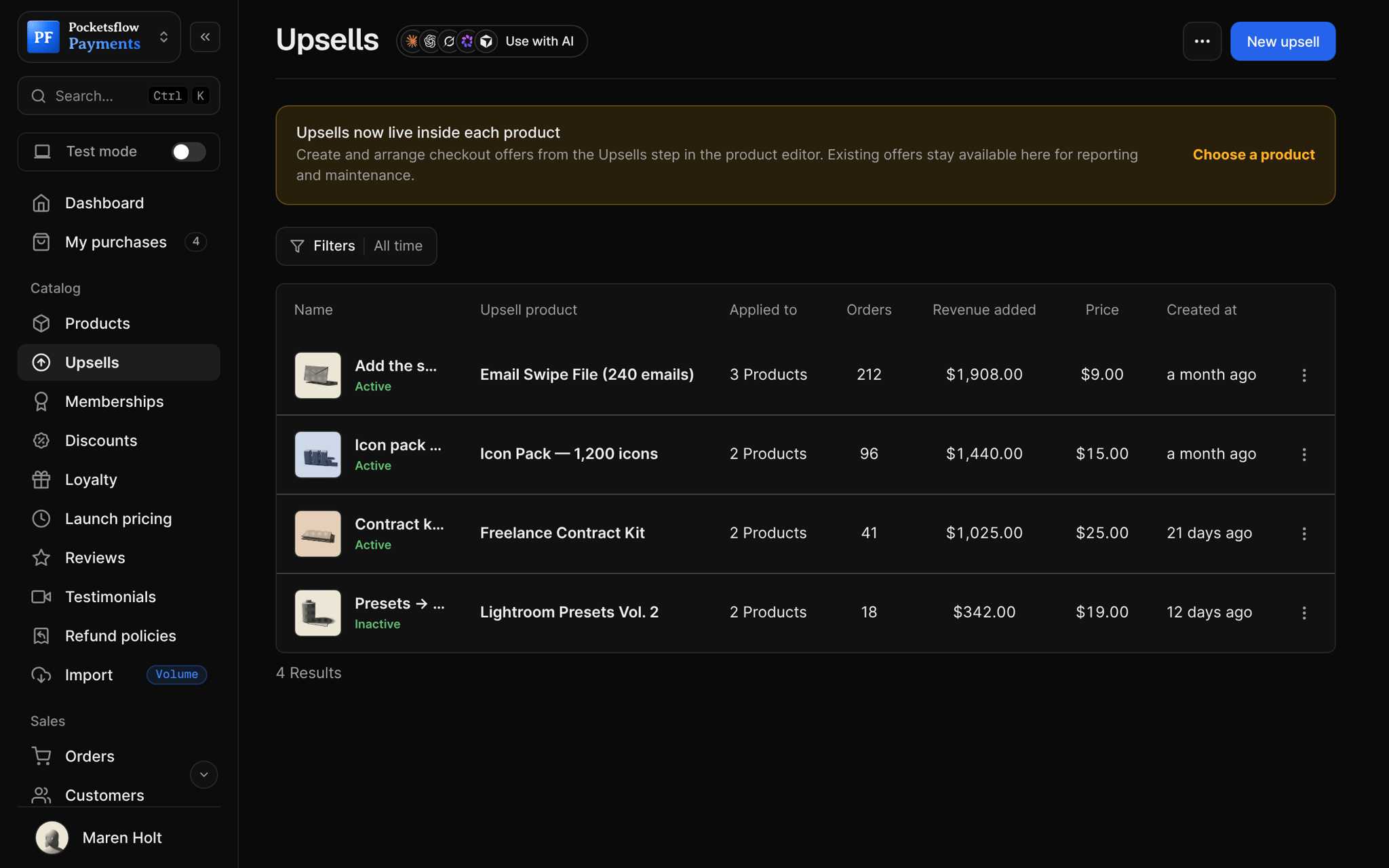
- estimated per sale, no monthly fee
- 4.7% + $0.30
- to add the offer to the order
- 1 tick
- extra fee for upsells
- $0
- MCP tools for upsells
- 5
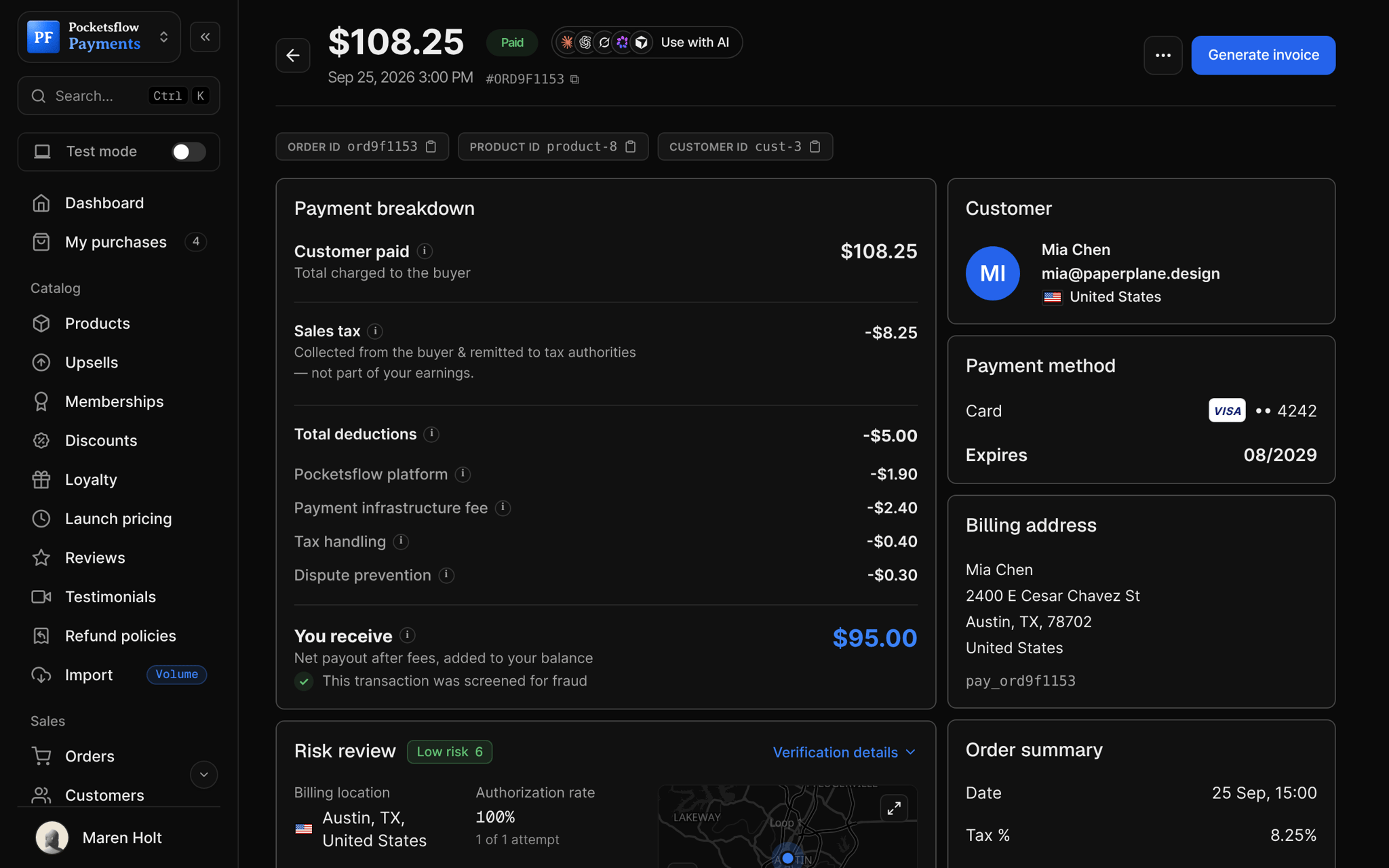
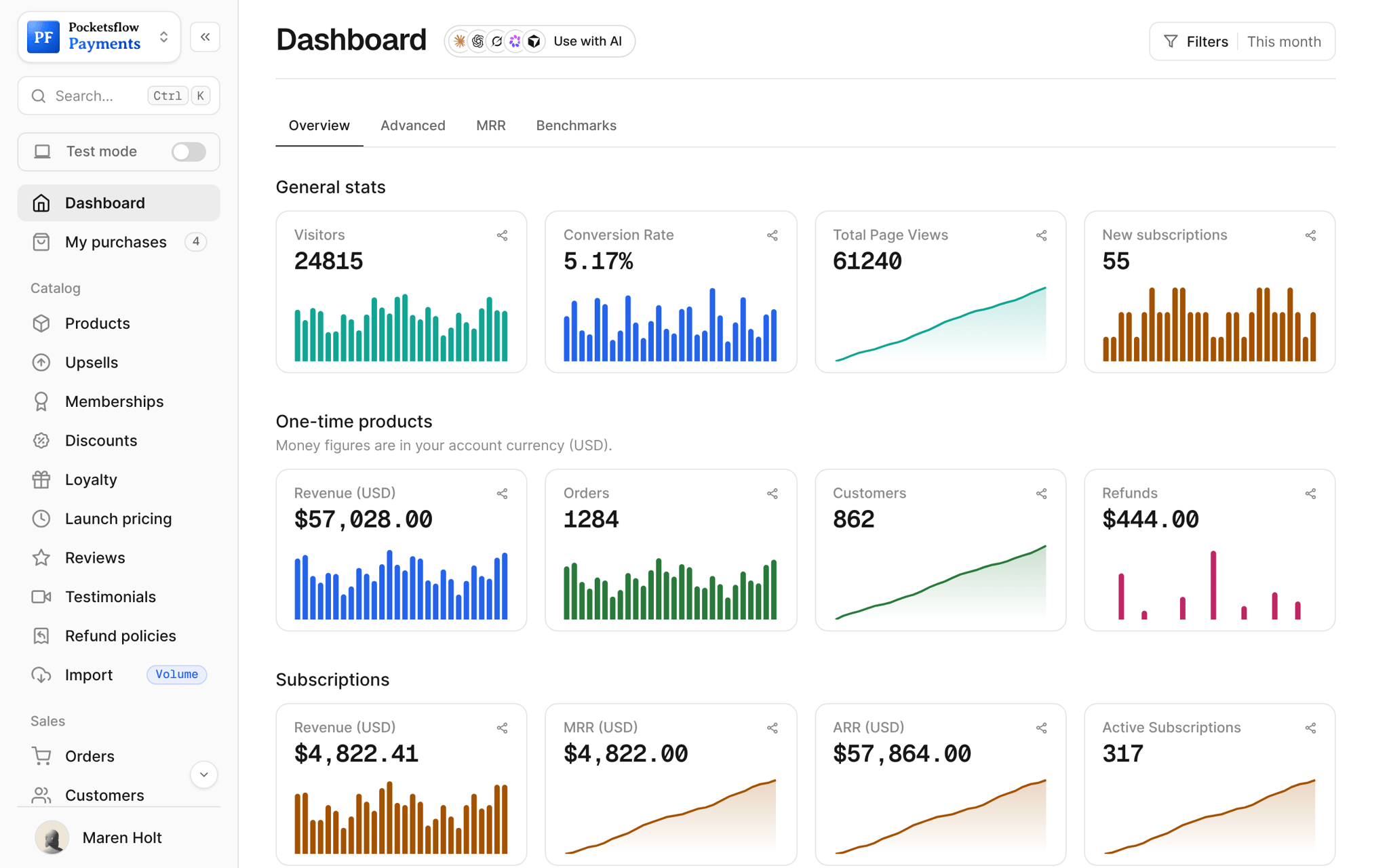
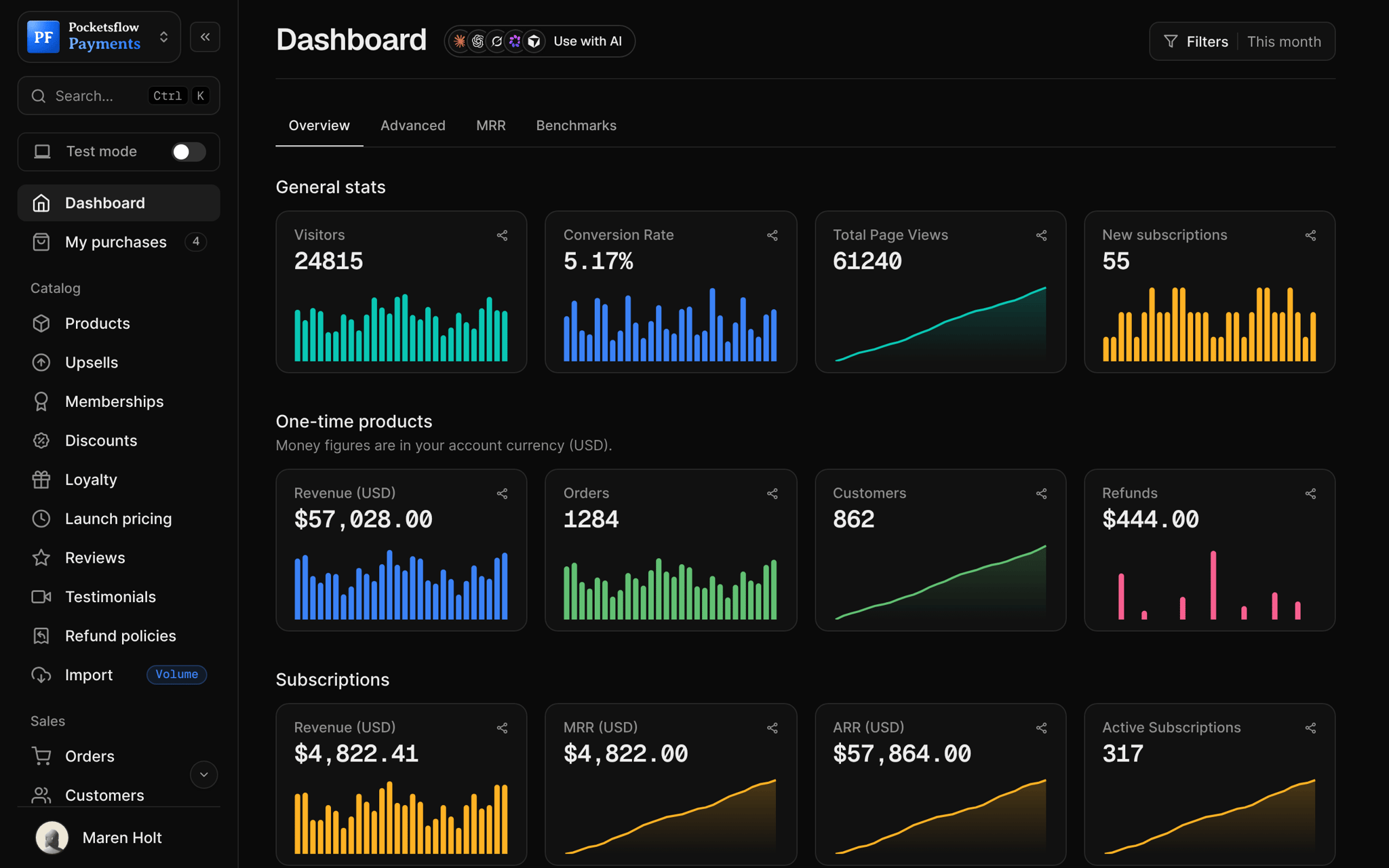
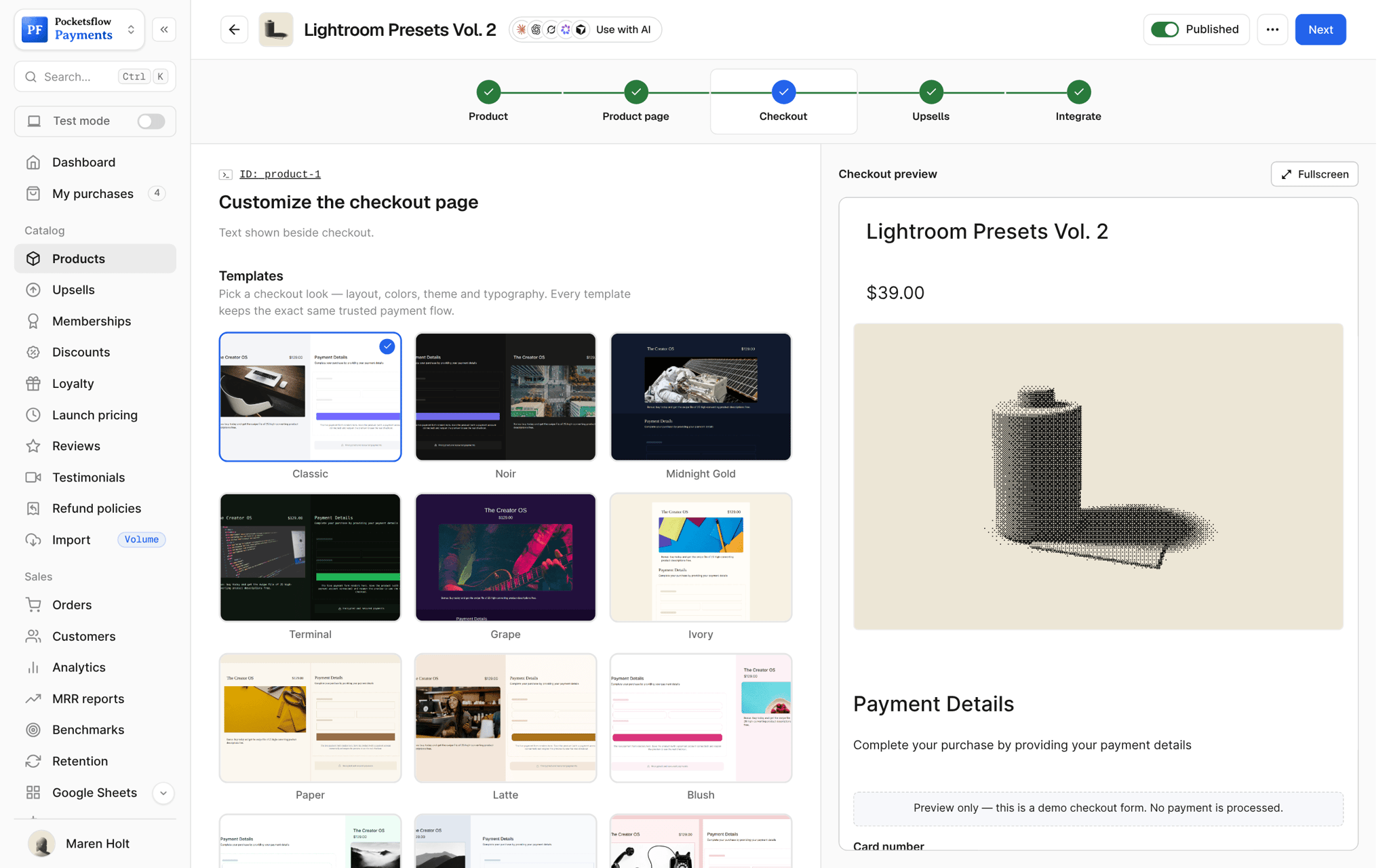
See how it works in the dashboard.
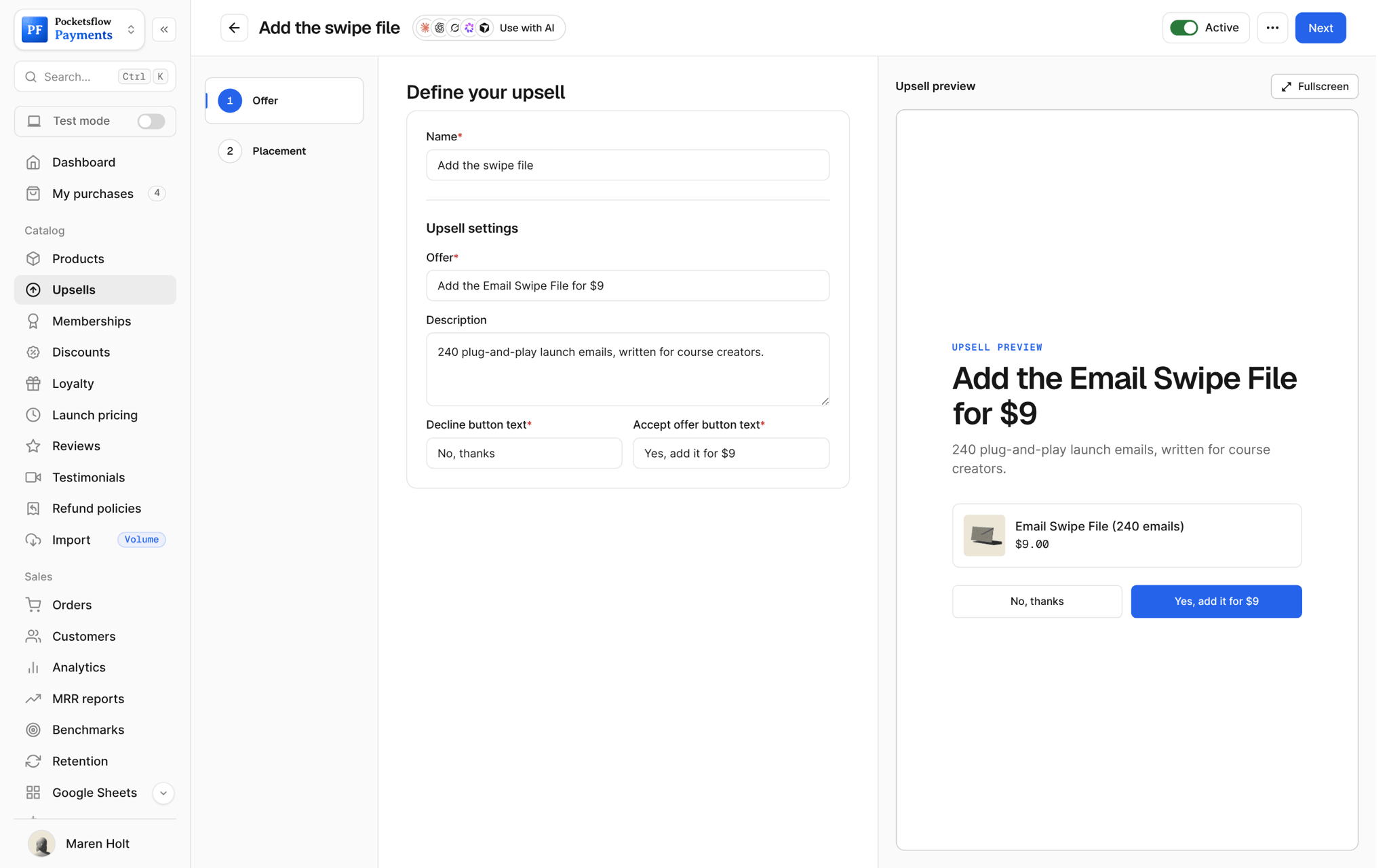
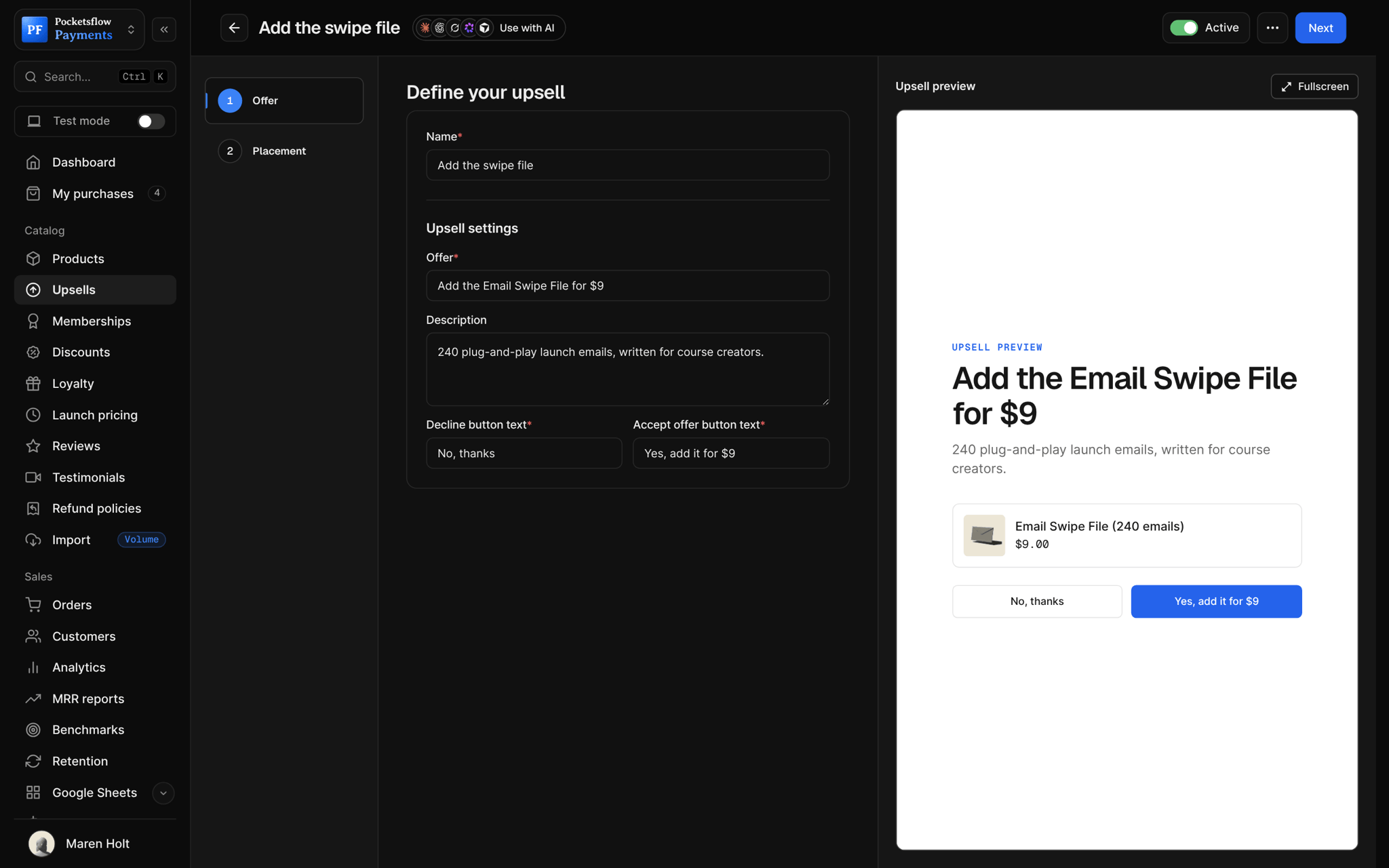
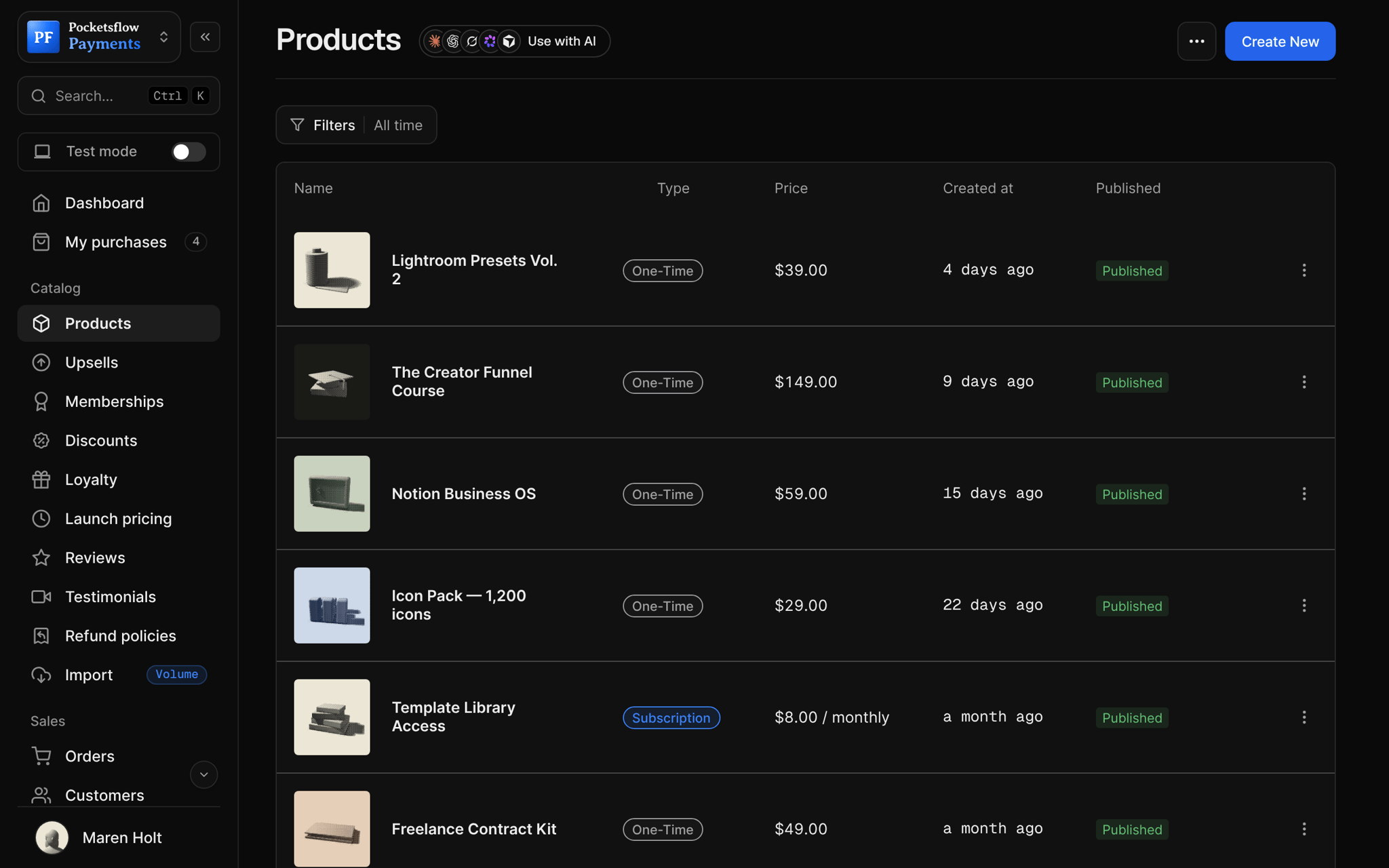
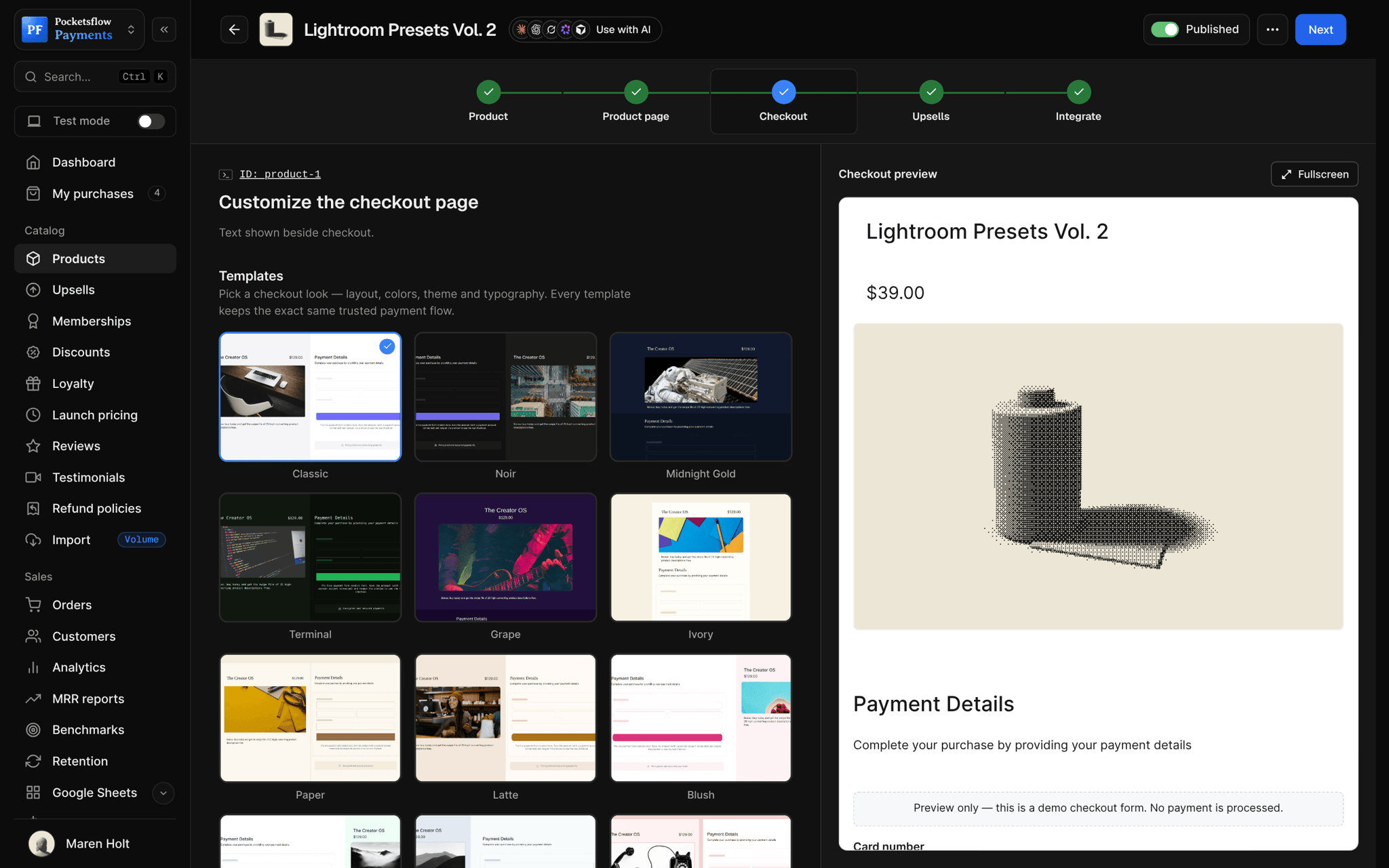
Every screen you will use.
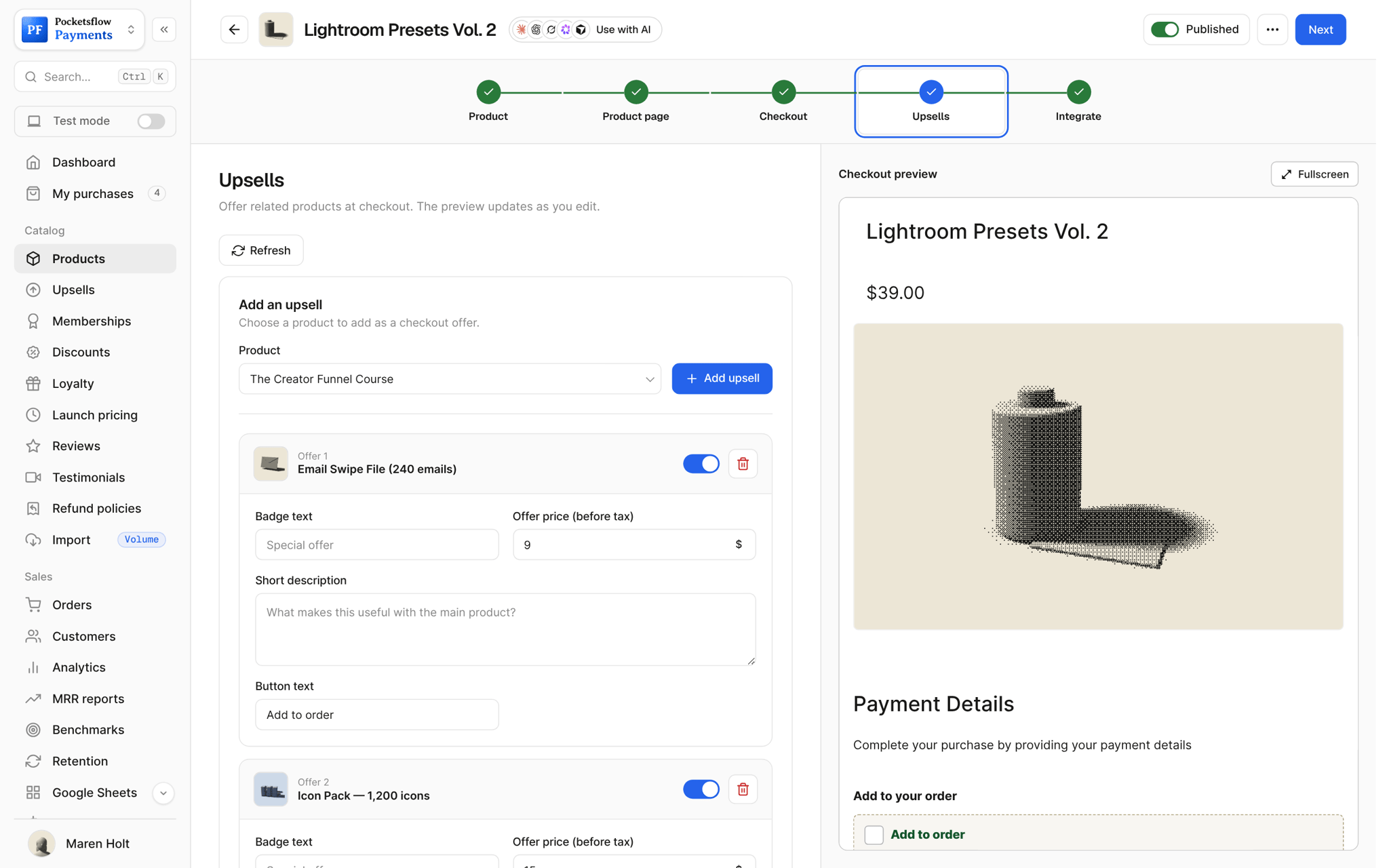
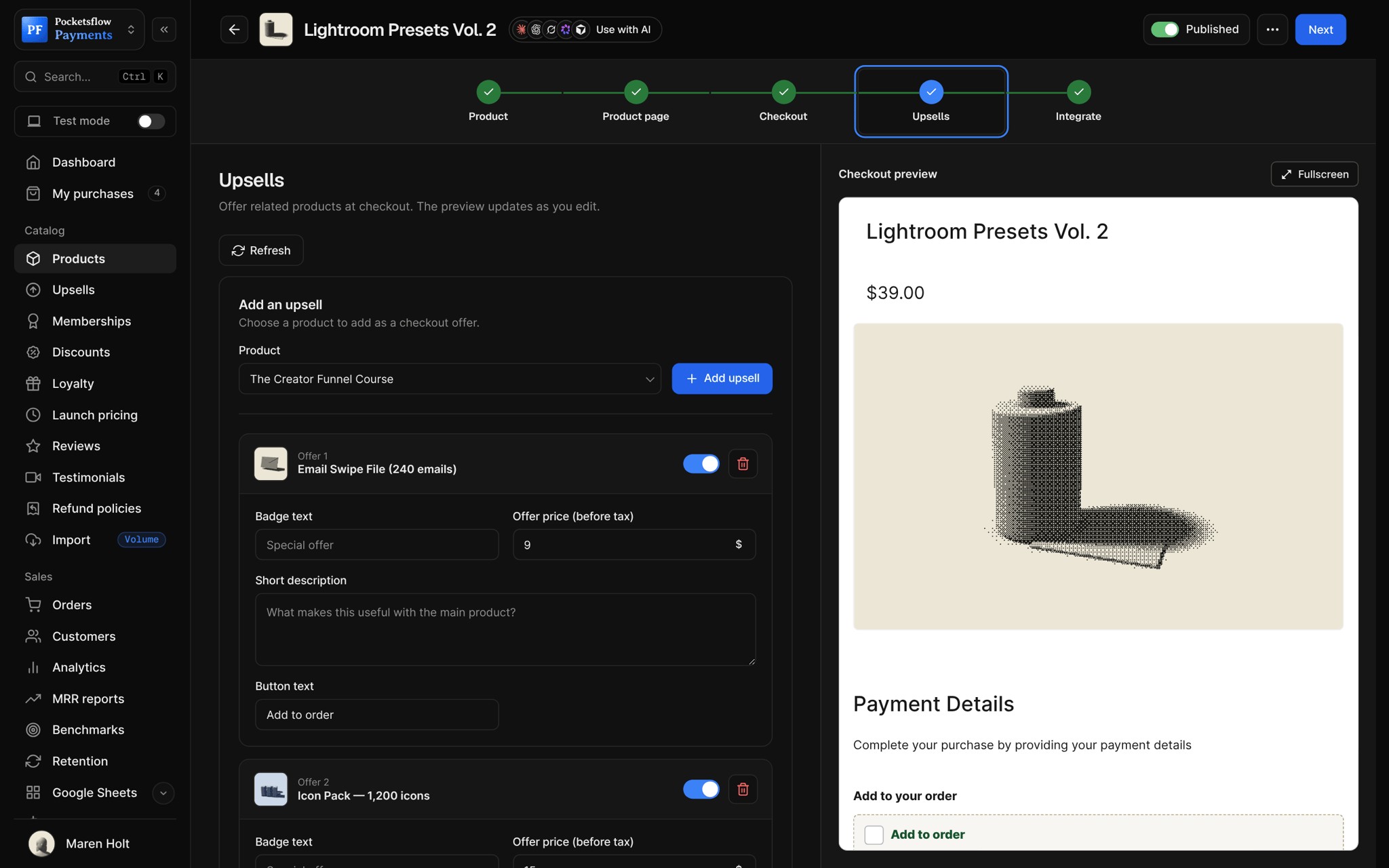
Offers that pair well.
Course plus templates
Templates or worksheets that make the course work faster.
Funnel templates$29
Ebook plus audio
The audio version of the book they are already buying.
Audiobook edition$9
Presets plus a guide
A how to guide for the pack in the cart.
Grading guide$12
Template plus setup call
A short call to install and customize it.
30 minute setup call$79
Single pack to bundle
The rest of the series at a bundle only price.
Presets Vol. 1 to 3$39
Community seat
Access to the community for buyers of a product.
Studio Sessions seat$19
Live in four steps.
Pick the add-on
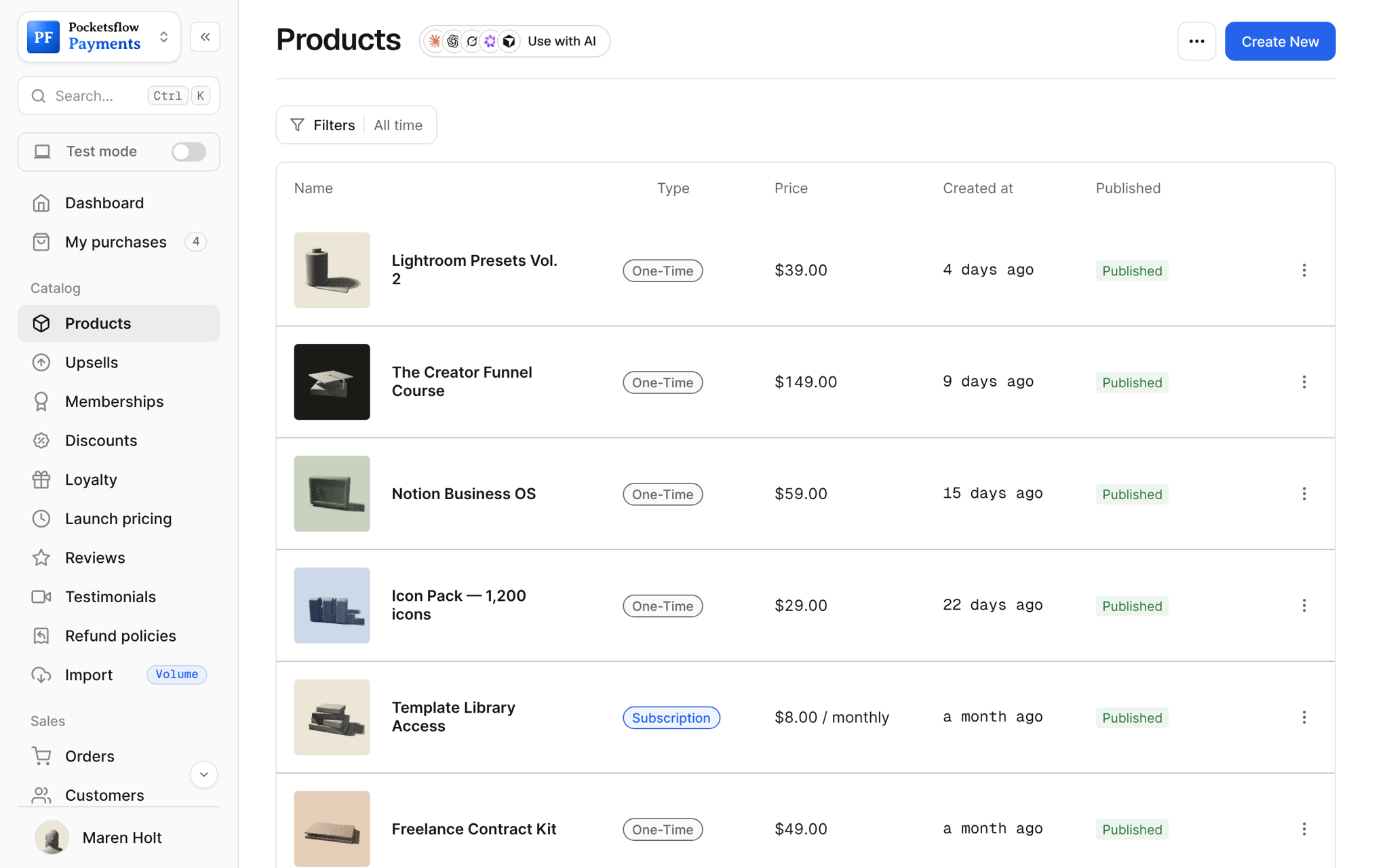
Choose any product in your catalog to offer.
Set the special price
A price for the bump only, with an optional crossed out compare at price.
Write the offer
A headline, one or two lines of description, and the button text.
Choose where it shows
Attach it to the products whose checkout should show it, and watch orders and revenue added.
Let your agents run and grow your business.
Connect Claude, ChatGPT, Codex, Grok, Cursor or any MCP client once. Then ask in plain words, and every change lands in your dashboard.
 Claude · Desktop app
Things to ask
- Add a $9 order bump to my course checkoutcreate_upsell
- Which upsell adds the most revenue?list_upsells
- Change the bump price to $12update_upsell
- Turn off the upsell on my presetsupdate_upsell
- Show the same offer on all three template packslist_products · update_upsell
- Delete the old Black Friday bumpdelete_upsell
Everything included.
- Order bumps on the checkout
- Any catalog product as the add-on
- A special price only inside the offer
- Compare at price shown crossed out
- Headline, description and button text
- Show on one product or many
- Colors and fonts that match your checkout
- Active toggle to pause an offer
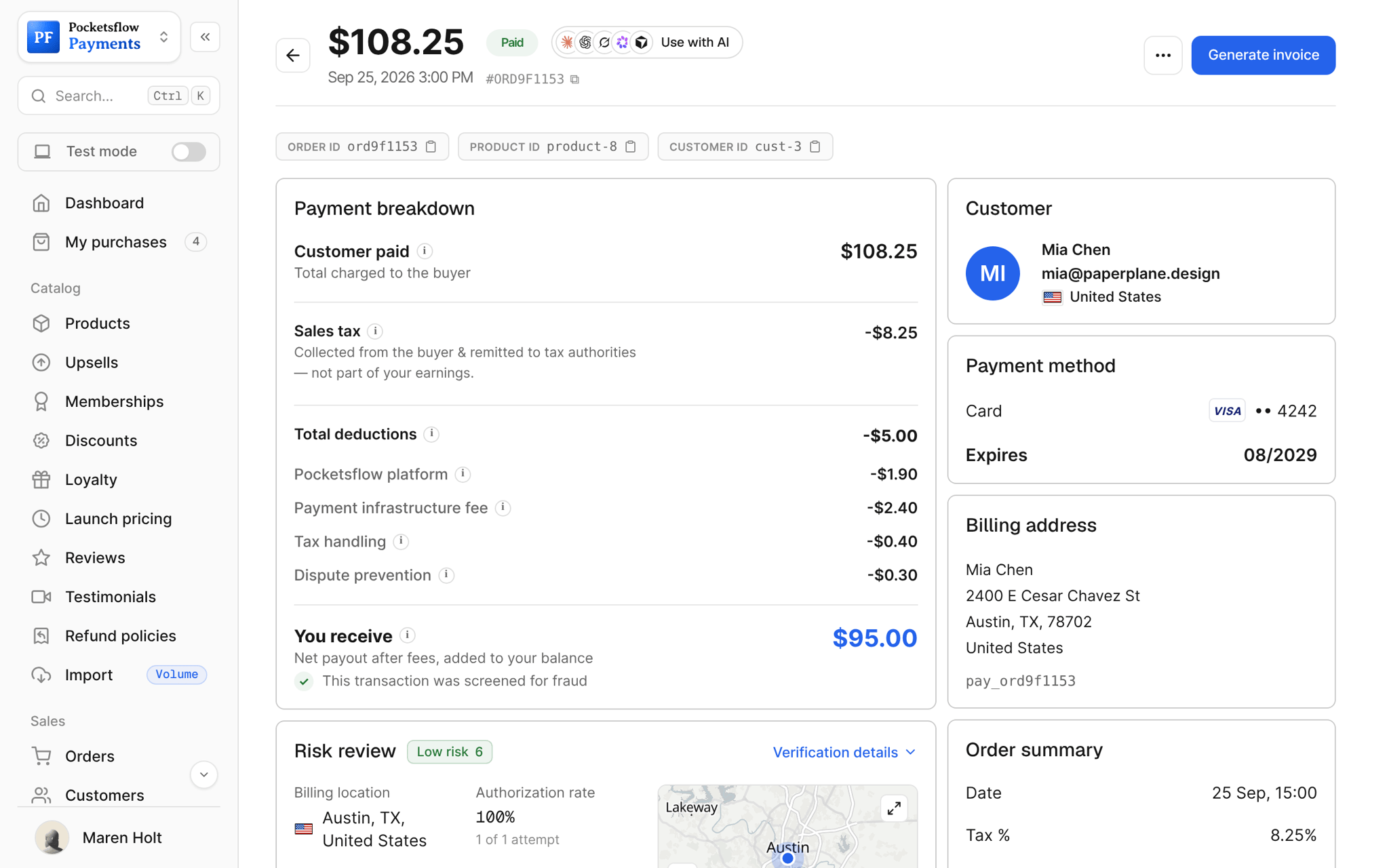
- Orders and revenue added per upsell
- Upsell shown on each order
- API, SDK and MCP tools
- No extra fee
Why sellers pick Pocketsflow.
Higher order value
More revenue from buyers who are already paying, without more traffic.
No extra friction
One tick, one payment, one receipt.
Measured
Orders and revenue added per offer, so you keep the ones that work.
Same fee
Bumps are part of the order: 4.7% + $0.30 estimated, no upsell surcharge.
It's easy. Even your AI can do it.
Add Pocketsflow to the AI you already use, sign in and click Allow access. No API key, no code.
- 01Paste into your AI appThen sign in and click Allow.www.pocketsflow.com/mcp
Add Pocketsflow
Paste the server URL as a connector in your AI app.
- 02
Sign in and allow
Your AI opens Pocketsflow. Click Allow access.
- 03
Ask for anything
Products, orders, discounts, emails, in plain words.
import { Pocketsflow } from "pocketsflow";

const pf = new Pocketsflow({ apiKey: process.env.POCKETSFLOW_API_KEY });

// An offer shown right after the main purchase. Accept or skip:
// the original order is complete either way.
const product = await pf.products.create({
  name: "Pro license",
  price: 49,
});

await pf.upsells.create({
  name: "Premium upgrade",
  mainProductIds: [product._id],
  upsellProductId: "771a0d4f…",
  upsellPrice: 39.99,
  upsellDescription: "Get the premium version!",
  primaryButtonText: "Yes, upgrade!",
  secondaryButtonText: "No thanks",
});
Upsells are an API call.
Create a checkout, attach a product, and let Pocketsflow handle the transaction lifecycle: payment, tax, delivery, and the receipt.
Every resource is an HTTPS endpoint under one base URL with Bearer API keys. Live and test keys are scoped to their own data; the OpenAPI spec is served at /docs.json.
Common questions.
Where does the upsell appear?
On the checkout, next to the payment form, as an order bump the buyer can tick before paying. It is added to the same order.
What can I offer?
Any product in your catalog: a premium edition, a bundle, templates, an audio version, a setup call or a community seat.
Can the upsell have its own price?
Yes. Set a special price that only applies inside the offer, and optionally a compare at price shown crossed out.
Can one offer show on several products?
Yes. Attach an upsell to as many products as you like, or create a different offer per product.
How do I know it works?
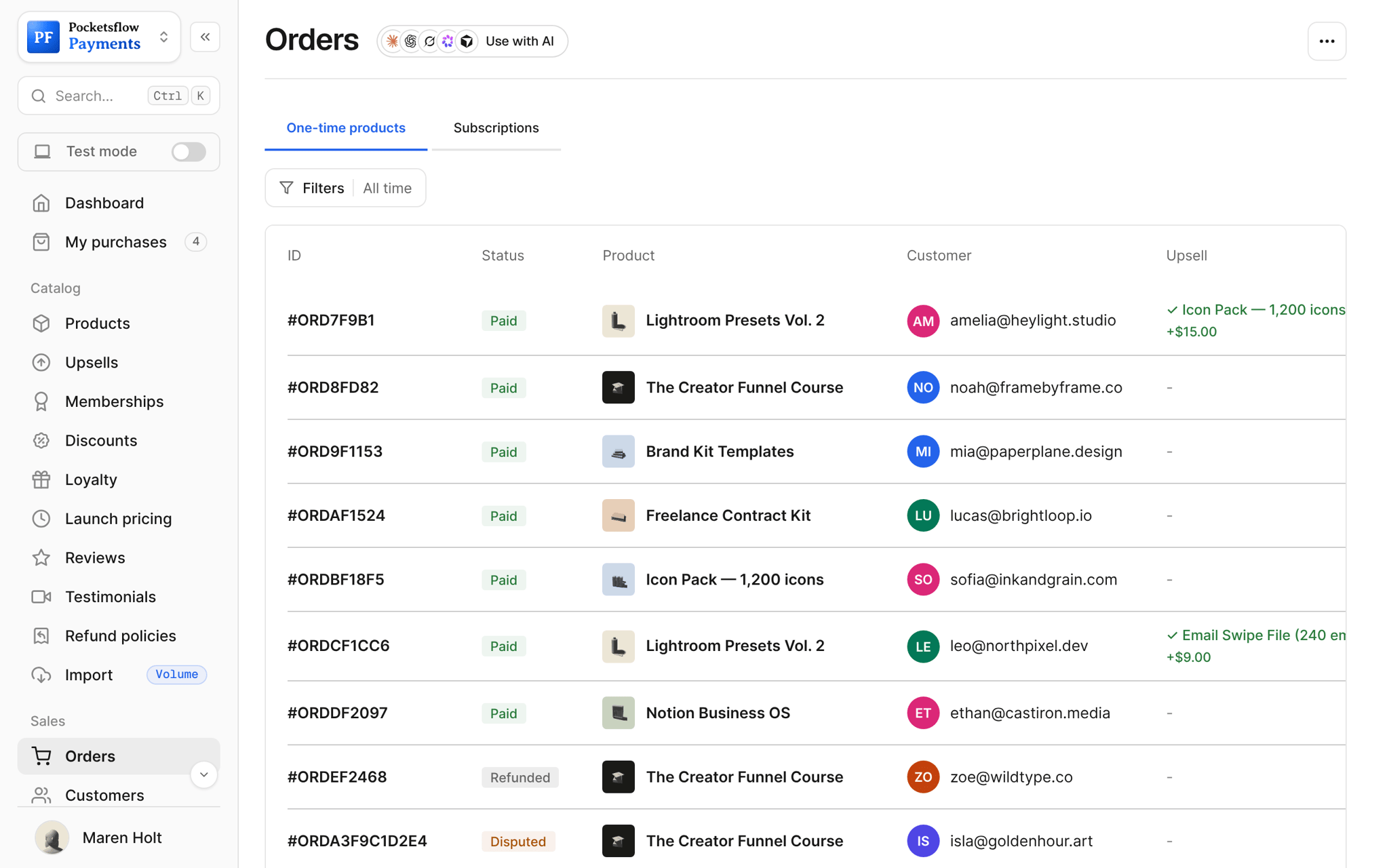
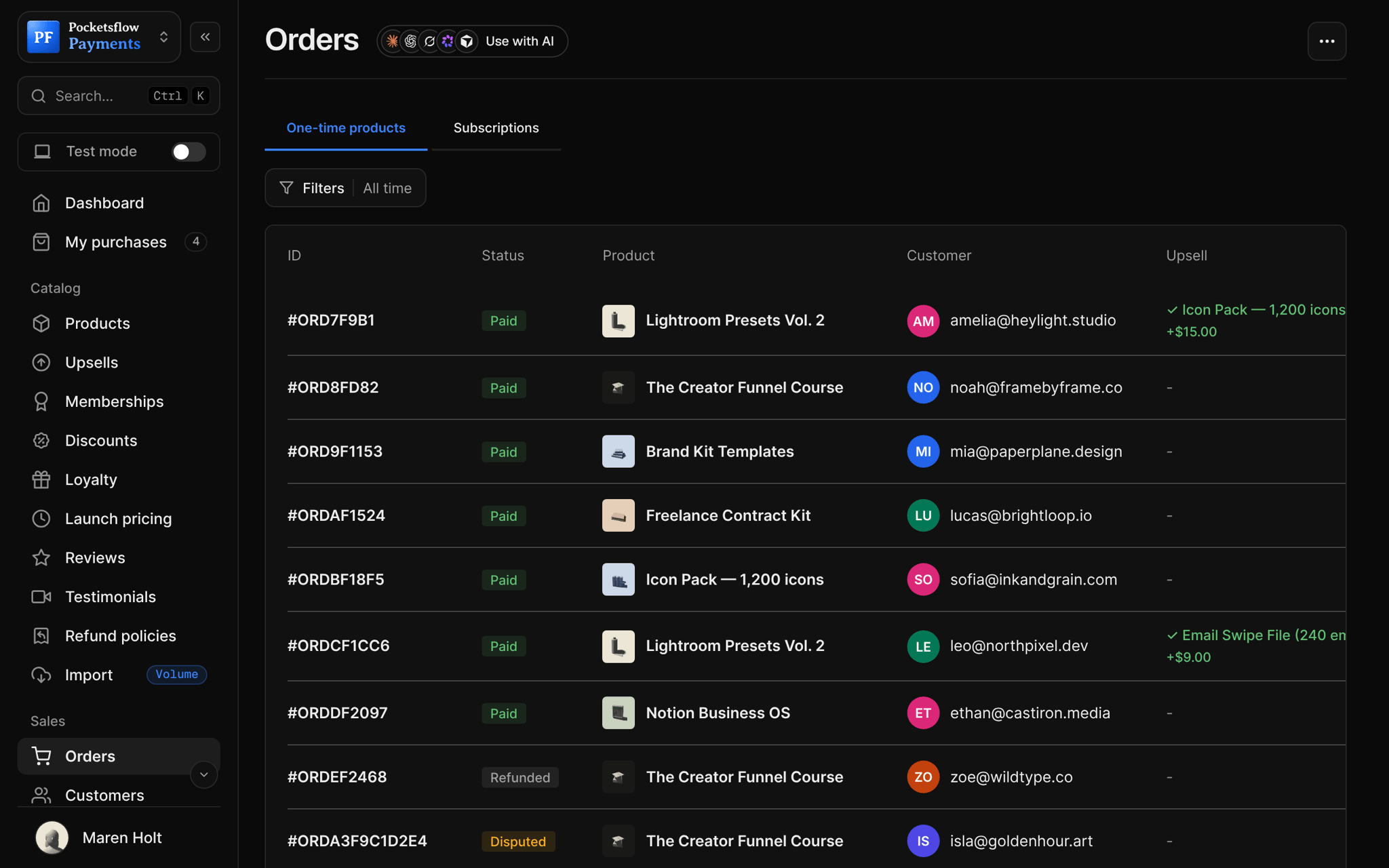
The upsells list shows orders and revenue added for each offer, and every order shows which bump the buyer added.
What does it cost?
No monthly fee and no setup fee. Each sale carries one itemized transaction cost, 4.7% + $0.30 estimated (about $5.00 on a $100 sale), covering the platform, payment infrastructure, tax handling and dispute prevention. Selling $50,000 or more a month? The Volume plans lower the platform fee to 1% or 0.5%.
Can my AI do this for me?
Yes. Add the Pocketsflow MCP server to Claude, ChatGPT, Codex, Grok, Cursor or any MCP client, sign in and click Allow access. No API key. Your AI can then create products, set prices and discounts, open checkouts, read orders and send emails, and every change shows up in your dashboard.
Keep exploring.
Start selling today.
Sell your first product in minutes, keep more of every sale, and let the AI you already use run the busywork.